Home
Home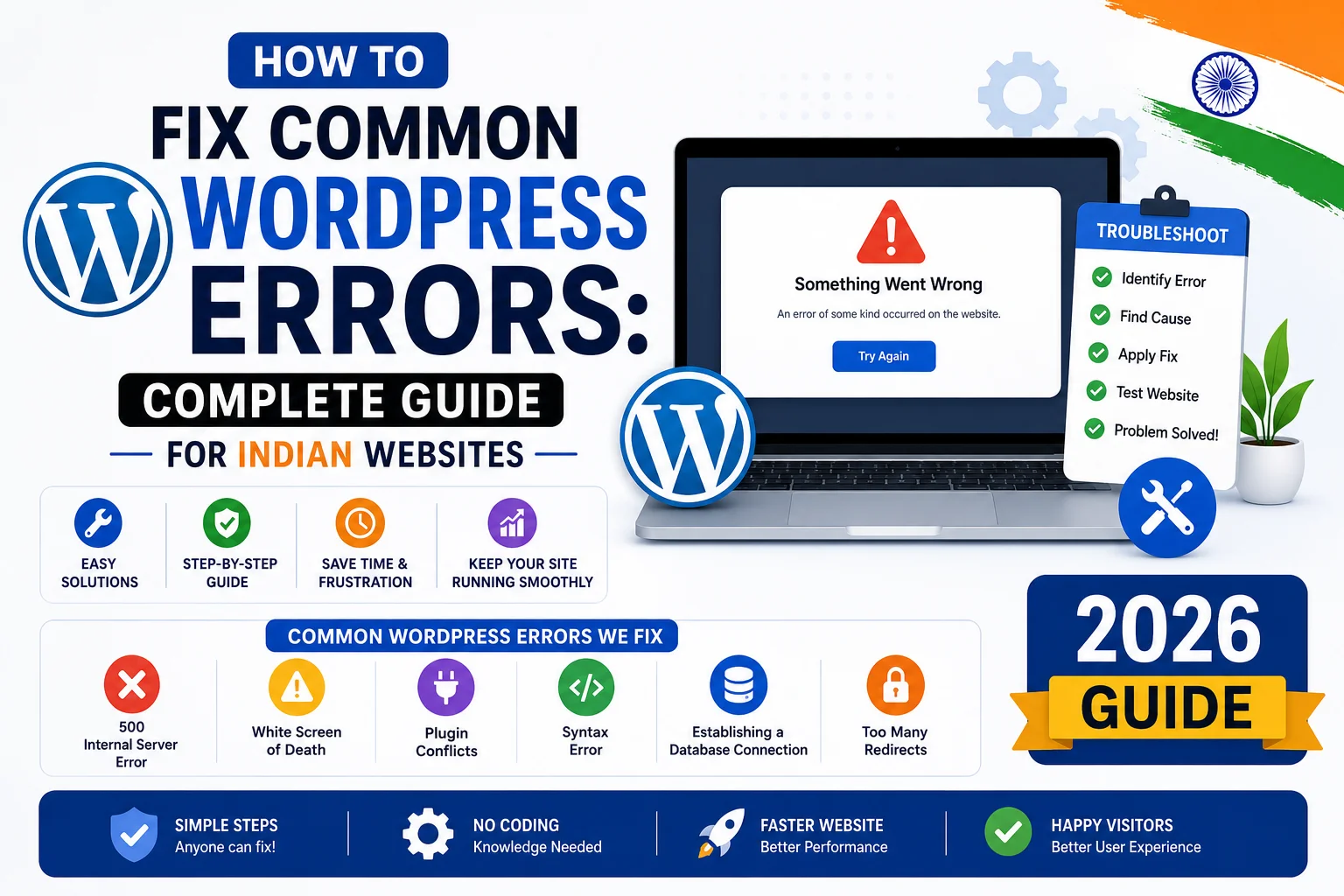
This happens to every WordPress website owner at some point.
The good news — most common WordPress errors have simple, step-by-step fixes
that you can apply yourself in minutes without calling a developer.
This complete guide covers every major WordPress error Indian website owners encounter in 2026 —
with clear causes and exact solutions for each.
Before You Fix Any WordPress Error — Do This First
Before attempting any fix, follow these three steps to protect your website:
- Take a backup immediately: Even a broken website has files and database that can be restored. Use your hosting control panel to download a full backup before making any changes.
- Note exactly what happened before the error: Did you install a plugin? Update WordPress? Change a theme? Knowing the trigger narrows down the cause dramatically.
- Enable WordPress debug mode: Add
define('WP_DEBUG', true);to your wp-config.php file temporarily — it shows the exact error causing the problem instead of a generic message.
1. WordPress White Screen of Death (WSOD)
The White Screen of Death is one of the most alarming WordPress errors —
your website shows a completely blank white page with no content, no error message, nothing.
It affects both the frontend (what visitors see) and sometimes the backend (wp-admin) as well.
What Causes the White Screen of Death?
- A plugin conflict — most common cause — a newly installed or updated plugin is incompatible
- A theme error — corrupted theme file or theme incompatible with current WordPress version
- PHP memory limit reached — your hosting plan has insufficient memory allocated
- Corrupted WordPress core files
- Syntax error in functions.php or another theme/plugin file
How to Fix the WordPress White Screen of Death
- Step 1 — Deactivate all plugins: Access your hosting file manager or FTP. Go to wp-content/plugins/ and rename the plugins folder to “plugins_disabled”. If the site comes back — a plugin was the cause. Rename the folder back and reactivate plugins one by one to find the culprit.
- Step 2 — Switch to a default theme: In your database via phpMyAdmin, change the template and stylesheet options to “twentytwentyfour”. If the site comes back — your theme was the cause.
- Step 3 — Increase PHP memory limit: Add
define('WP_MEMORY_LIMIT', '256M');to your wp-config.php file. Many Indian shared hosting plans have low memory limits by default. - Step 4 — Enable debug mode: Add
define('WP_DEBUG', true);to wp-config.php to see the exact error message causing the blank screen. - Step 5 — Reinstall WordPress core: Download a fresh WordPress copy from wordpress.org and upload all files except wp-content and wp-config.php to replace potentially corrupted core files.
2. Error Establishing a Database Connection
This error means WordPress cannot connect to your MySQL database —
the database that stores all your website’s content, pages, posts, and settings.
Without the database connection, WordPress cannot display anything.
What Causes This Error?
- Incorrect database credentials in wp-config.php — wrong username, password, or database name
- Database server is down — temporary issue with your hosting provider
- Corrupted database tables — can happen after a crash or failed update
- Exceeded database storage limit on shared hosting plans
How to Fix Database Connection Error
- Step 1 — Check wp-config.php credentials: Open wp-config.php in your hosting file manager. Verify that DB_NAME, DB_USER, DB_PASSWORD, and DB_HOST match your actual database credentials in your hosting control panel (cPanel).
- Step 2 — Check if database server is running: Log into your hosting cPanel → MySQL Databases. If the database is listed, the server is running. Contact your host if the database is missing.
- Step 3 — Repair the database: Add
define('WP_ALLOW_REPAIR', true);to wp-config.php, then visit yoursite.com/wp-admin/maint/repair.php. This runs WordPress’s built-in database repair tool. - Step 4 — Contact your hosting provider: If the above steps do not resolve the issue, contact your host — Hostinger, SiteGround, or Cloudways support can check database server status on their end.
3. WordPress 404 Error — Page Not Found
A 404 error means a page cannot be found — either because it does not exist
or because WordPress’s URL structure (permalink) has become misconfigured.
What Causes 404 Errors in WordPress?
- Permalinks not set up or got reset — most common cause in WordPress
- Page was deleted but links to it still exist across the website
- .htaccess file is missing or corrupted
- WordPress URL was changed without updating all internal links
- Plugin conflict affecting URL routing
How to Fix WordPress 404 Errors
- Step 1 — Regenerate permalinks (fixes 90% of cases): Go to WordPress Dashboard → Settings → Permalinks → click Save Changes without changing anything. This regenerates the .htaccess file and almost always fixes WordPress 404 errors instantly.
- Step 2 — Check and restore .htaccess file: Access your hosting file manager, open the root folder, and check if .htaccess exists. If missing, create a new file named .htaccess with the standard WordPress permalink code.
- Step 3 — Set up 301 redirects for deleted pages: Install the “Redirection” plugin and add redirects from deleted page URLs to relevant existing pages. This prevents 404 errors from damaging your SEO.
- Step 4 — Check Google Search Console: GSC shows all 404 errors Google has detected on your website. Fix these systematically to protect your search rankings.
4. WordPress 500 Internal Server Error
The 500 Internal Server Error is a generic server-side error —
it means something went wrong on the server but the server cannot be more specific about what.
What Causes 500 Internal Server Error?
- Corrupted .htaccess file — adding invalid code to .htaccess
- PHP memory limit exceeded
- Corrupted WordPress core files
- Plugin or theme causing a fatal PHP error
- File or folder permission issues on the server
How to Fix 500 Internal Server Error
- Step 1 — Reset .htaccess file: Rename your existing .htaccess to .htaccess_old via file manager. Visit your site — if it loads, the .htaccess was corrupted. Go to Settings → Permalinks → Save Changes to generate a fresh .htaccess.
- Step 2 — Increase PHP memory limit: Add
php_value memory_limit 256Mto your .htaccess file, or adddefine('WP_MEMORY_LIMIT', '256M');to wp-config.php. - Step 3 — Deactivate all plugins: Rename the plugins folder via file manager to disable all plugins at once. If the error resolves — reactivate plugins one at a time to find the conflicting one.
- Step 4 — Check file permissions: In your hosting file manager, folders should be set to 755 and files to 644. Incorrect permissions frequently cause 500 errors on Indian shared hosting accounts.
- Step 5 — Reinstall WordPress core files: Download fresh WordPress files and replace everything except wp-content and wp-config.php.
5. WordPress Login Page Keeps Refreshing or Redirecting
You try to log into WordPress admin but the login page just refreshes indefinitely
or redirects you back to the login page without logging in.
This is extremely frustrating — you are locked out of your own website.
What Causes Login Redirect Loop?
- Incorrect WordPress URL settings in the database
- Corrupted browser cookies
- Plugin conflict affecting the login process
- WordPress URL and Site URL mismatch in settings
How to Fix WordPress Login Redirect Loop
- Step 1 — Clear browser cookies and cache: Close your browser completely, clear all cookies and cache, then try logging in again. This fixes the issue in many cases.
- Step 2 — Try a different browser or incognito mode: If the redirect only happens in one browser — the issue is browser-specific, not WordPress.
- Step 3 — Fix WordPress URL in database: Access phpMyAdmin via cPanel → select your WordPress database → wp_options table → find siteurl and home rows → verify both contain your correct domain URL (https://yourdomain.com).
- Step 4 — Deactivate plugins via file manager: Rename the plugins folder to disable all plugins — if you can now log in, a plugin was causing the redirect.
6. WordPress Stuck in Maintenance Mode
When WordPress updates itself, it creates a .maintenance file and shows visitors a maintenance message.
If the update fails or is interrupted, the .maintenance file remains — and your website stays in maintenance mode forever.
How to Fix WordPress Stuck in Maintenance Mode
- Step 1 — Delete the .maintenance file: Access your hosting file manager → root directory of your WordPress installation → find a file named .maintenance (it may be hidden — enable “show hidden files” in file manager) → delete it immediately.
- Step 2 — Check for failed update: After deleting .maintenance, log into your WordPress dashboard → check if any plugins or WordPress core show a failed update → complete the update properly.
- Step 3 — Prevent future occurrences: Always take a backup before running updates. Enable automatic minor WordPress updates to reduce manual update failures.
7. WordPress Images Not Uploading or Displaying
You try to upload an image in WordPress and get an error — or images exist in the media library
but show as broken on the front end of your website.
What Causes Image Upload Errors?
- Incorrect file permissions on the wp-content/uploads folder
- Upload folder does not exist or is not writable
- PHP upload size limit too low for the file you are uploading
- Exhausted hosting disk space
How to Fix WordPress Image Upload Errors
- Step 1 — Check folder permissions: wp-content/uploads folder must be set to 755 permissions. Change this in your hosting file manager by right-clicking the uploads folder → Change Permissions → 755.
- Step 2 — Increase upload size limit: Add these lines to your .htaccess file:
php_value upload_max_filesize 64Mandphp_value post_max_size 64M. This increases the maximum file upload size. - Step 3 — Check available disk space: In your hosting cPanel, check remaining disk space. A full disk prevents any new file uploads. Delete unnecessary files or upgrade your hosting plan.
- Step 4 — Regenerate image thumbnails: If images exist but display broken, install the “Regenerate Thumbnails” plugin and run it — this rebuilds all thumbnail sizes from original images.
8. WordPress RSS Feed Errors
Your WordPress RSS feed shows an XML error or blank page —
affecting newsletter subscribers and Google News indexing.
How to Fix WordPress RSS Feed Errors
- Go to WordPress Dashboard → Settings → Reading → check “For each article in a feed, show” settings
- Check for extra spaces or blank lines before the opening PHP tag in functions.php
- Deactivate plugins one at a time — a plugin adding output before headers is often the cause
- Go to Settings → Permalinks → Save Changes to flush rewrite rules
Common Mistakes When Fixing WordPress Errors
- Making multiple changes at the same time — change one thing at a time so you know what fixed the problem
- Not taking a backup before attempting any fix — a failed fix attempt can make things worse
- Editing the wrong file — always double-check the file path before making any changes
- Not clearing cache after making fixes — cached versions of broken pages can make you think the fix did not work
- Contacting a developer immediately without trying simple solutions first — most WordPress errors have self-service fixes
Pro Tips — Prevent WordPress Errors Before They Happen
- Always take a complete backup before updating WordPress, plugins, or themes
- Use a staging environment to test updates before applying to your live website
- Keep WordPress, plugins, and themes updated — most errors occur on outdated installations
- Use quality hosting — Hostinger Business, Cloudways, or SiteGround — cheap hosts have more server-related errors
- Install Wordfence — its scanner detects corrupted files and plugin conflicts before they cause visible errors
- Monitor uptime with UptimeRobot (free) — get alerted the moment your website goes down
Conclusion
WordPress errors are frightening when they happen — but almost all of them have straightforward fixes
that you can apply yourself by following the steps in this guide.
The most important habits are taking regular backups, keeping everything updated,
and noting exactly what changed before an error appeared.
If you have followed all the steps in this guide and the error persists —
it is time to contact a professional WordPress developer who can diagnose and fix the issue
before it causes any more business disruption.
Call To Action
Is your WordPress website showing an error you cannot fix?
Contact us today — we diagnose and fix WordPress errors for Indian business websites quickly and professionally.
Or reach us on WhatsApp for urgent website issues that need immediate attention.
Frequently Asked Questions
What is the most common WordPress error for Indian websites?
The most common WordPress error in India is the 404 Page Not Found error after a permalink reset,
followed by the White Screen of Death caused by plugin conflicts after updates.
Both are easily fixed — 404 errors by saving permalink settings, WSOD by deactivating plugins via file manager.
How do I fix the WordPress White Screen of Death?
Start by deactivating all plugins through your hosting file manager by renaming the plugins folder.
If the site returns, reactivate plugins one by one to find the conflict.
If deactivating plugins does not help, switch to a default WordPress theme and increase the PHP memory limit.
What should I do if I am locked out of my WordPress admin?
First try clearing browser cookies and using a different browser or incognito mode.
If that does not work, check your WordPress siteurl and home settings in the database via phpMyAdmin.
You can also reset your admin password directly through phpMyAdmin in the wp_users table.
How do I access my WordPress website if it is showing a database error?
Open wp-config.php in your hosting file manager and verify that the database name, username,
and password exactly match the credentials shown in your hosting control panel’s MySQL Databases section.
Even one incorrect character will cause the database connection to fail.
Can I fix WordPress errors without technical knowledge?
Many common WordPress errors can be fixed by non-technical users by following step-by-step guides.
The most common fixes — regenerating permalinks, clearing cache, deactivating plugins — require no coding.
For more complex errors involving database changes or file permissions,
consulting a WordPress developer is recommended to avoid accidental data loss.
How do I prevent WordPress errors from happening again?
The most effective prevention strategies are: taking weekly backups stored off-server,
keeping WordPress core, plugins, and themes always updated, using quality hosting,
and installing a security plugin like Wordfence that detects file corruption and plugin conflicts early.