Home
Home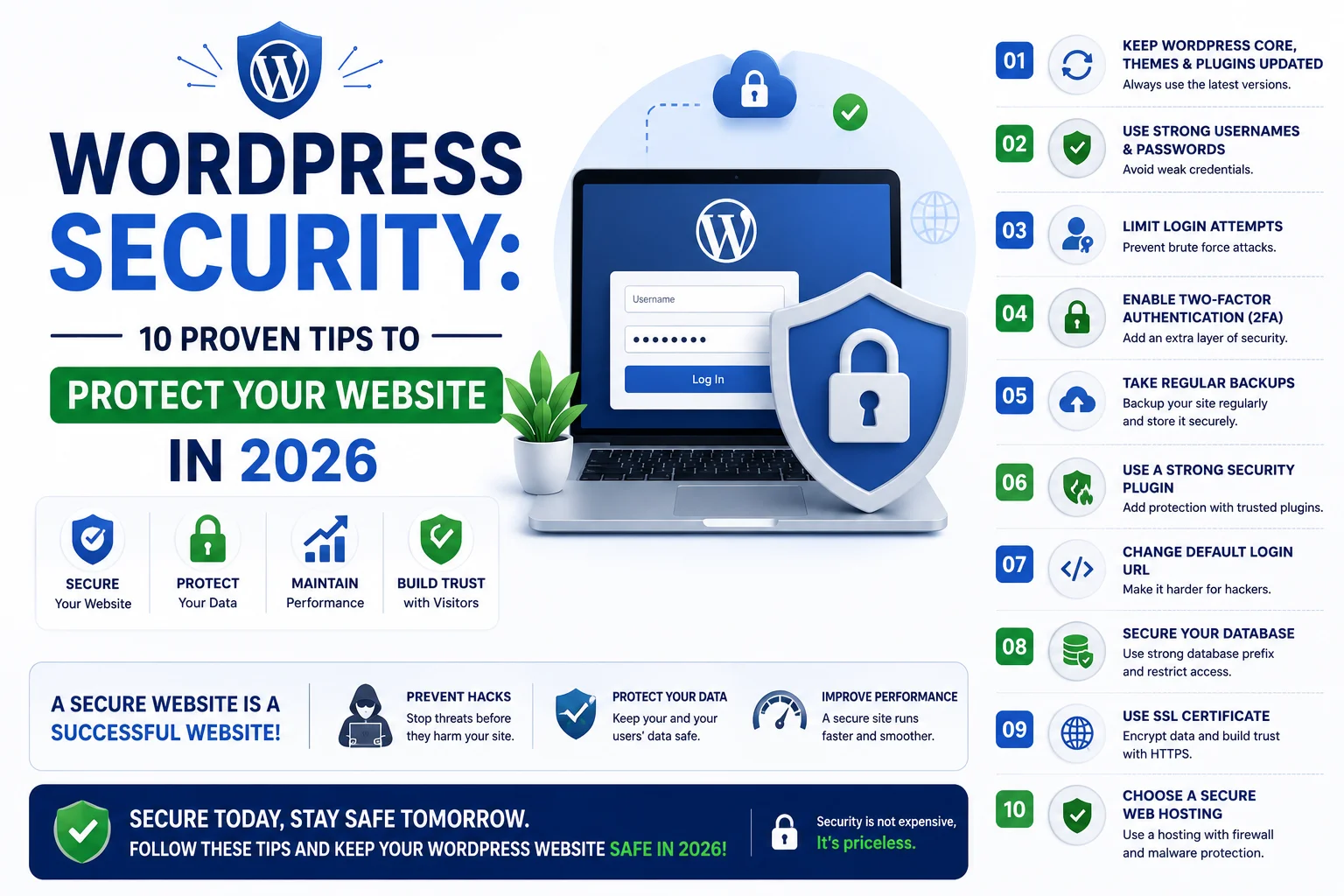
Over 90,000 websites are hacked every single day worldwide.
And the majority of them run on WordPress — not because WordPress is insecure,
but because website owners ignore security until it is too late.
For Indian businesses, a hacked website means lost customer data, Google blacklisting your site,
and emergency recovery costs of ₹20,000 to ₹50,000 or more.
In this complete guide, you will learn exactly how to secure your WordPress website in India in 2026 —
most of these steps are free and can be completed in one afternoon.
Why WordPress Websites Get Hacked
WordPress is the world’s most popular CMS — powering 43% of all websites.
This popularity makes it the most targeted platform for hackers.
But the cause of 99% of WordPress hacks is not a flaw in WordPress itself —
it is poor security practices by website owners.
- Outdated plugins and themes: The number one cause of WordPress hacks — 56% of all attacks
- Weak passwords: “admin” and “password123” are tried by hackers in every automated attack
- Nulled (pirated) themes and plugins: Almost always contain hidden backdoor code
- No SSL certificate: Unencrypted sites are easy targets for data interception
- Cheap hosting: Budget hosts skip security features and share resources with compromised sites
- No firewall: Without a firewall, malicious traffic reaches your site directly
The good news: every single one of these causes is completely preventable
with the 10 steps in this guide.
What Happens When Your WordPress Website Gets Hacked?
A hacked WordPress website can cause serious damage to your business — far beyond just a broken website.
- Google displays a “This site may be hacked” warning in search results — customers instantly leave
- Google may completely remove your site from search results — destroying all your SEO rankings
- Customer data, email addresses, and payment information may be stolen
- Hackers may use your website to send spam emails — damaging your domain reputation
- Hidden malware may redirect your visitors to competitor or fraudulent websites
- Emergency cleanup and recovery costs ₹20,000 to ₹50,000 or more in India
- Recovery time: 2 to 4 weeks of business disruption while the site is being fixed
Prevention costs a fraction of recovery. The 10 steps below take one afternoon to implement
and protect your website for years.
10 Proven WordPress Security Tips for Indian Websites in 2026
1. Keep WordPress, Themes, and Plugins Always Updated
Outdated software is responsible for the majority of WordPress hacks.
Every update released by WordPress, theme developers, and plugin creators
includes security patches for newly discovered vulnerabilities.
Running outdated versions means those vulnerabilities remain open — and hackers know exactly where to look.
- Enable automatic updates for WordPress minor versions in your dashboard settings
- Check for plugin and theme updates at least once per week
- Always take a complete backup before applying major updates
- Delete plugins and themes you no longer use — inactive code can still be exploited
- Only install plugins from WordPress.org or trusted premium marketplaces
2. Use Strong, Unique Passwords for Every Account
Brute force attacks — where hackers try thousands of password combinations automatically —
are responsible for a large number of WordPress hacks.
A strong password stops these attacks completely.
- Minimum 16 characters with uppercase, lowercase, numbers, and symbols
- Never use the same password for WordPress, hosting, and email accounts
- Change the default “admin” username immediately — hackers target this first
- Use a password manager — Bitwarden (free) or 1Password — to generate and store strong passwords
- Change your WordPress admin password every 6 months
3. Install a WordPress Security Plugin
A security plugin acts as a firewall and monitoring system for your WordPress website —
blocking malicious traffic, scanning for malware, and alerting you to threats before they cause damage.
- Wordfence Security (free): Most popular WordPress security plugin — firewall, malware scanner, login protection
- Sucuri Security (free): Excellent malware scanning and security hardening
- iThemes Security (free): Comprehensive security hardening with 30+ protection methods
Install one security plugin — not multiple, as they can conflict with each other.
Configure it properly after installation — the default settings are not always optimized for protection.
4. Enable Two-Factor Authentication (2FA)
Two-factor authentication adds a second verification step when logging into your WordPress admin.
Even if a hacker knows your password, they cannot log in without also having access to your phone.
This single step eliminates the vast majority of unauthorized login attempts.
- Install the “WP 2FA” plugin — free and easy to configure
- Use Google Authenticator or Authy app on your phone for the second factor
- Enable 2FA for every user account on your WordPress website — not just the admin
5. Always Have SSL Certificate (HTTPS)
An SSL certificate encrypts all data transmitted between your website and your visitors’ browsers.
Without SSL, sensitive information — contact form submissions, login credentials, payment details —
can be intercepted by attackers.
- Check your website URL — it should start with https:// not http://
- If it shows http:// — your SSL is missing or not configured correctly
- Most quality hosting providers include a free SSL certificate (Let’s Encrypt)
- Google marks non-HTTPS sites as “Not Secure” — this also hurts your Google rankings
- Use the “Really Simple SSL” plugin to force HTTPS across your entire WordPress site
6. Limit Login Attempts
By default, WordPress allows unlimited login attempts.
This makes brute force attacks — trying thousands of passwords automatically — very easy.
Limiting login attempts blocks attackers after a few failed tries.
- Install “Limit Login Attempts Reloaded” plugin — free and highly effective
- Set maximum to 3 to 5 attempts before temporary lockout
- After repeated lockouts from the same IP, permanently block that IP address
- Wordfence and iThemes Security also include login limiting — no extra plugin needed if you have these
7. Change the Default WordPress Login URL
By default, every WordPress website’s login page is at yourdomain.com/wp-admin.
Every hacker and automated bot knows this — and targets it constantly.
Changing the login URL to something unique dramatically reduces automated attacks.
- Install “WPS Hide Login” plugin — free, lightweight, highly effective
- Change /wp-admin to something unique — /my-secure-login or any custom path
- Save the new URL securely — you will need it every time you log in
- iThemes Security also includes this feature in its free version
8. Take Regular Backups — Stored Off-Server
A backup is your ultimate security safety net.
If your website is hacked, infected with malware, or accidentally broken —
a recent backup restores everything in minutes instead of weeks of recovery work.
- Install “UpdraftPlus” plugin — free, the most trusted WordPress backup solution
- Schedule automatic backups — daily for eCommerce, weekly for standard business sites
- Store backups off-server — connect to Google Drive, Dropbox, or Amazon S3
- Test your backup restoration at least once every 3 months
- Keep at least 4 weeks of backup history — malware infections are sometimes not immediately noticed
9. Use Quality, Secure Hosting
Your hosting provider is the foundation of your website’s security.
Cheap shared hosting puts your website on servers alongside thousands of other sites —
if one site on that server gets infected, malware can spread to your website.
- Choose hosting with built-in malware scanning — SiteGround, Cloudways, and Hostinger Business include this
- Ensure your hosting supports PHP 8.1 or higher — older PHP versions have known security vulnerabilities
- Enable the hosting provider’s built-in firewall (WAF) if available
- Use hosting that provides free automatic daily backups as an additional safety layer
10. Regularly Scan for Malware
Even with all other security measures in place, regular malware scanning provides an additional layer of protection.
Malware can sometimes enter through a compromised plugin update or a vulnerability discovered after your last update.
Regular scanning catches infections early — before they cause serious damage.
- Run a full malware scan at least once per week using Wordfence or Sucuri
- Immediately investigate any suspicious files flagged by the scanner
- Use Sucuri’s free online scanner (sitecheck.sucuri.net) to check your site from the outside
- Monitor Google Search Console for any security warnings or manual action notifications
WordPress Security Checklist for Indian Businesses
- WordPress core updated to latest version
- All plugins updated — outdated plugins deleted
- All themes updated — unused themes deleted
- Strong unique password for admin account
- Username changed from default “admin”
- Two-factor authentication enabled
- SSL certificate active — site shows HTTPS
- Security plugin installed and configured (Wordfence or Sucuri)
- Login attempts limited to 3 to 5
- WordPress login URL changed from /wp-admin
- Automatic backups scheduled — stored on Google Drive or Dropbox
- Quality hosting with server-level firewall
- Weekly malware scan scheduled
- Google Search Console checked for security warnings
Common WordPress Security Mistakes Indian Businesses Make
- Using nulled (pirated) themes or plugins — they almost always contain backdoor malware
- Using the same weak password for WordPress, hosting, and email — one breach compromises all three
- Never taking backups — discovered only when a recovery is urgently needed
- Storing backups on the same server as the website — a server compromise destroys both
- Installing too many security plugins — they conflict with each other and create gaps
- Ignoring plugin update notifications for weeks or months — every day delayed is a risk
- Not removing old, inactive admin accounts from previous developers
Pros and Cons of WordPress Security Measures
Pros
- Prevention costs a fraction of emergency recovery — ₹0 vs ₹20,000 to ₹50,000
- Most security measures are completely free — plugins, SSL, strong passwords
- Protects customer data — builds trust and prevents legal liability
- Maintains Google rankings — hacked sites get blacklisted and lose all rankings
- Peace of mind — you know your website and your customers’ data are protected
Cons
- Initial setup takes 2 to 4 hours — one-time investment
- Some security plugins add a small performance overhead if not configured correctly
- Premium security services (Sucuri Pro, Wordfence Premium) have annual costs
Conclusion
WordPress security is not optional for any Indian business with an active website in 2026.
The cost of prevention is a few hours of setup and a few minutes of weekly monitoring.
The cost of recovery — in emergency fees, lost rankings, and business disruption — is 100 times greater.
Implement the 10 steps in this guide today.
Your website, your customers’ data, and your Google rankings will all be significantly safer by tonight.
Call To Action
Want a security audit and professional setup for your WordPress website?
Get a free security consultation today — we audit, harden, and protect WordPress websites for Indian businesses.
Or contact us to discuss your website security requirements.
Frequently Asked Questions
Is WordPress secure for business websites in India?
Yes — WordPress is fundamentally secure when properly maintained.
The vast majority of WordPress hacks occur due to outdated plugins, weak passwords, and poor hosting —
not due to flaws in WordPress itself. Following the 10 steps in this guide makes your WordPress site
extremely difficult to compromise.
Which is the best free WordPress security plugin in India?
Wordfence Security is the most popular and comprehensive free WordPress security plugin.
It includes a firewall, malware scanner, login protection, and real-time threat monitoring.
Sucuri Security is an excellent alternative with strong malware scanning and security hardening features.
How do I know if my WordPress website has been hacked?
Signs of a hacked WordPress website include: Google showing a “This site may be hacked” warning,
unexpected redirects to other websites, new unknown admin users appearing, your hosting company suspending the account,
or Google Search Console showing a security warning notification.
How much does it cost to fix a hacked WordPress website in India?
Emergency WordPress malware removal and recovery in India typically costs ₹15,000 to ₹50,000
depending on the severity of the infection and the complexity of the cleanup.
This does not include the indirect cost of lost business during the 2 to 4 week recovery period.
Do I need an SSL certificate for my WordPress website in India?
Yes — absolutely. SSL (HTTPS) is mandatory for any business website in 2026.
Without SSL, browsers show a “Not Secure” warning to visitors, Google ranks your site lower,
and any data submitted through forms can be intercepted. Most quality hosting providers
include a free SSL certificate — activate it immediately if you have not already.
How often should I back up my WordPress website?
eCommerce websites and sites with daily content changes should be backed up daily.
Standard business websites should be backed up weekly at minimum. All backups should be stored off-server — in Google Drive, Dropbox, or another cloud service —
never only on the same server as the website itself.